
Rent and payments · Owner mobile app or web dashboard
Generate and review rent invoices
Understand rent invoice creation, billing periods, due dates and outstanding amounts in the RentPayor app.
The PDF includes these steps and their available product screenshots.
Before you begin
- A saved lease with the correct rent terms.
- Access to the corresponding tenant and invoice records.
Step-by-step walkthrough
- 1
Check the lease terms
Confirm the rent amount, billing interval, invoice start date and due day before reviewing the invoice. The lease is the source of recurring rent obligations.
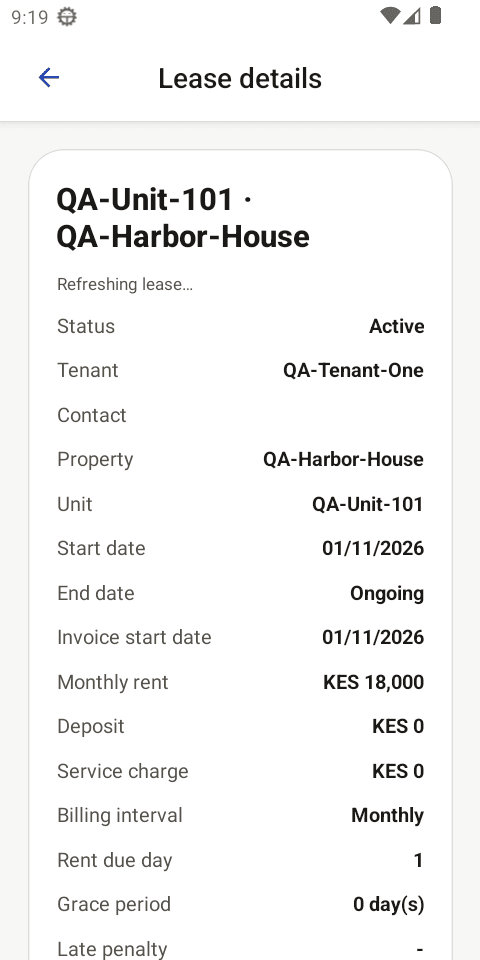
Current local QA emulator capture: review the active lease terms before checking the invoice it produces. - 2
Generate or inspect the relevant invoice
Open the matching invoice and confirm its property, unit, tenant, billing period and rent line before taking payment. If the invoice was created by the lease workflow or scheduled cycle, avoid generating a duplicate for the same lease and period.
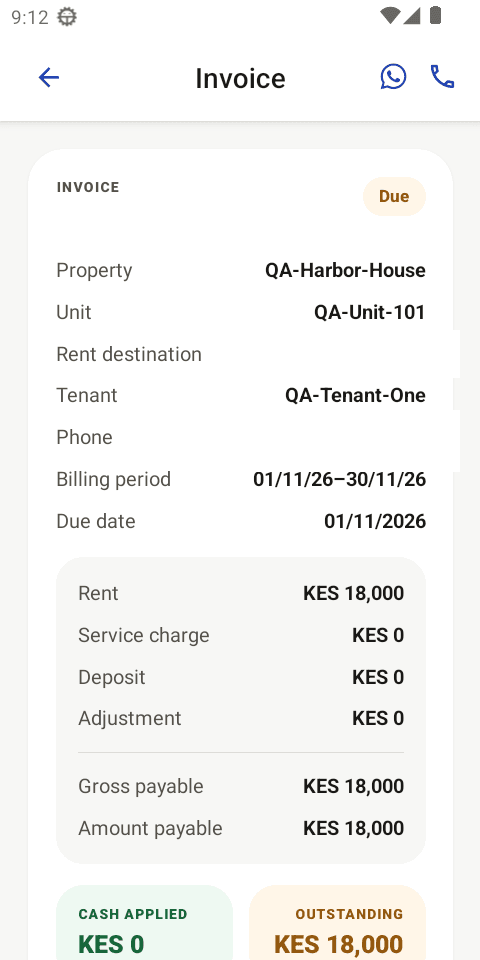
Current local QA emulator capture: the invoice detail ties QA-Harbor-House and QA-Unit-101 to QA-Tenant-One and KES 18,000 rent. - 3
Verify the outstanding amount
Open the invoice and check its tenant, unit, rent period, due date, line items and outstanding balance. The amount paid and due status will change when payments are applied.
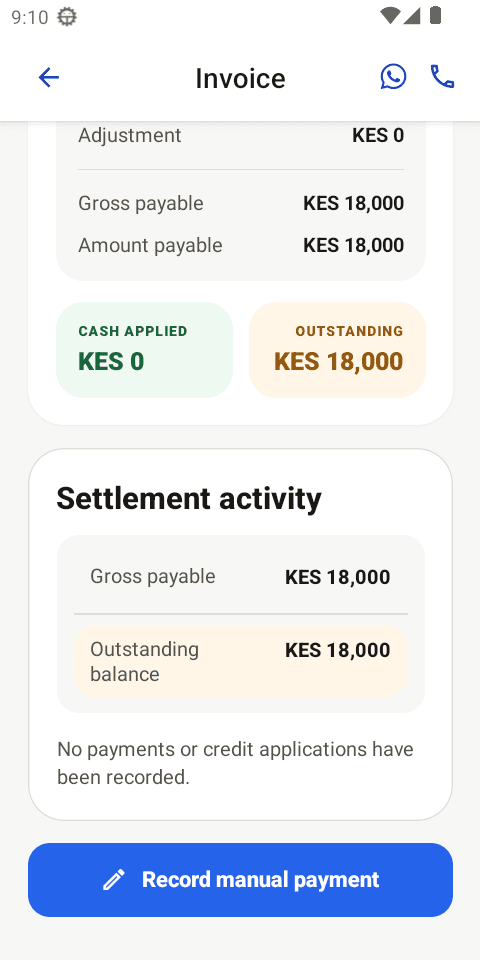
Current local QA emulator capture: no payment has been applied, so cash applied is KES 0 and the outstanding balance is KES 18,000.
Expected result
- An invoice is tied to the correct tenant and lease period.
- The due date and outstanding amount can be reviewed.
- The invoice is ready for online or manual payment.
Important details
- Scheduled invoices depend on the configured lease cycle. The published screenshots show a fictional local QA lease and unpaid invoice; they are instructional examples, not production records.